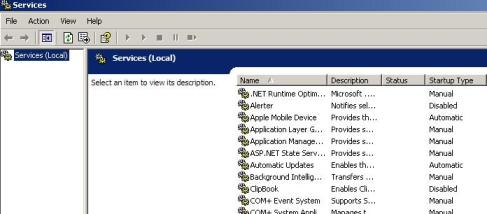
If you do not know what Windows Services are please be careful in trying anything described below. It has long been the opinion of most savvy Windows XP users that when Windows starts up there are a lot of services running in the background that are just not necessary. The trick is in knowing which ones you can completely disable or simply change from their "Automatic" setting to "Manual". I am only going to touch on the idea of trying these changes in this quick article. For more in depth choices and advice concerning which services are expendable so to speak and which you can try to turn on or off please check out one of my favorite sites: Black Viper On Black Vipers site he goes into a well informed and in depth detail for not only Windows XP services but also Windows 2000 and Windows Vista. Here is the really cool thing that I came away learning after finally finding his site again. You can setup on your PC several different "Hardware Profiles" ensuring that you keep one as the current default so that you will always have a working profile to go back to if you make a mistake or stop a service that you later find you really need. Here briefly are the steps for creating those different "Hardware Profiles": - Click on your Start button and choose the Control Panel
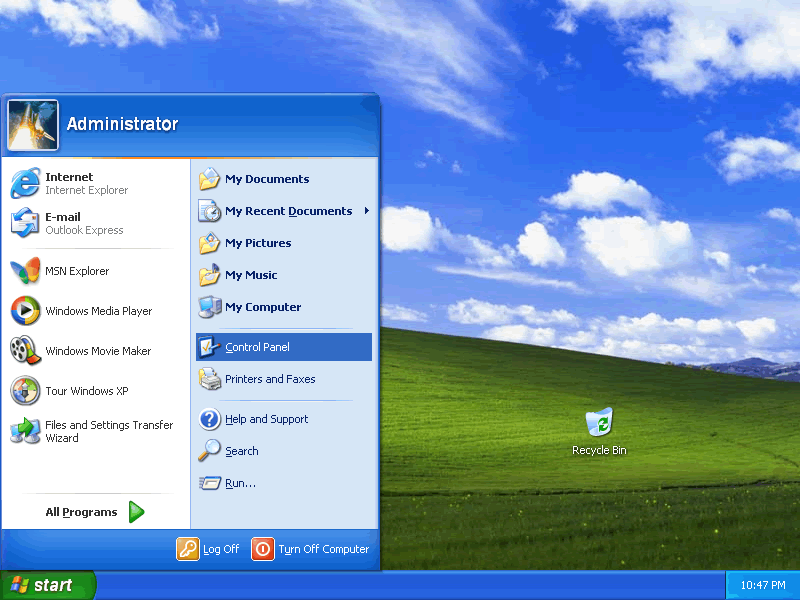
- In the Control panel, select Performance and Maintenance.
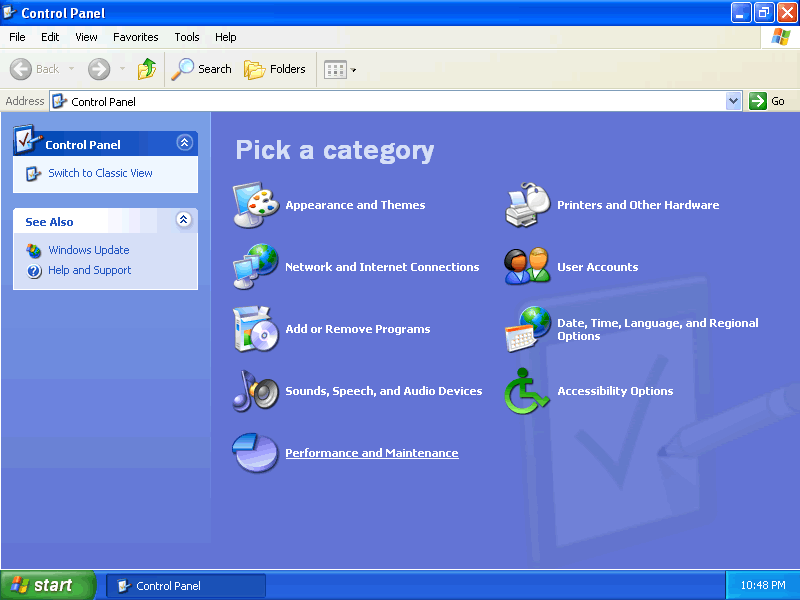
- In the Performance and Maintenance panel, select system
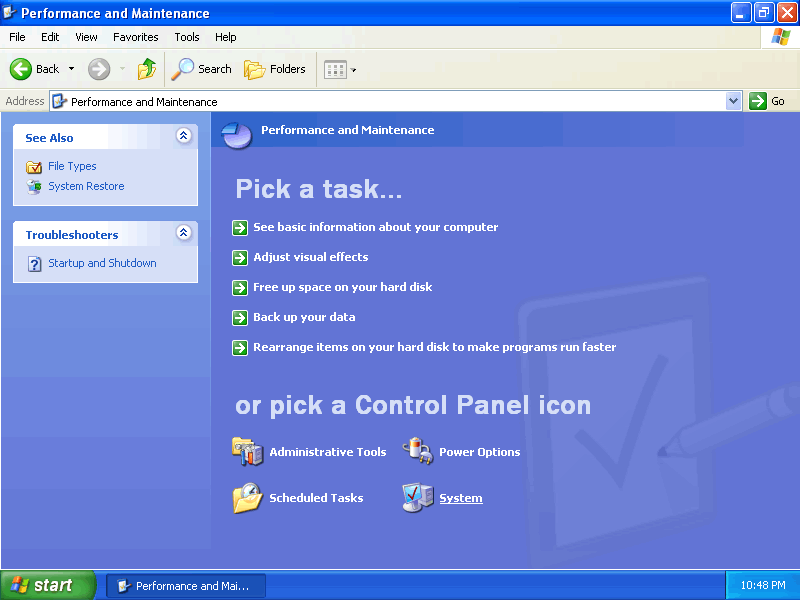
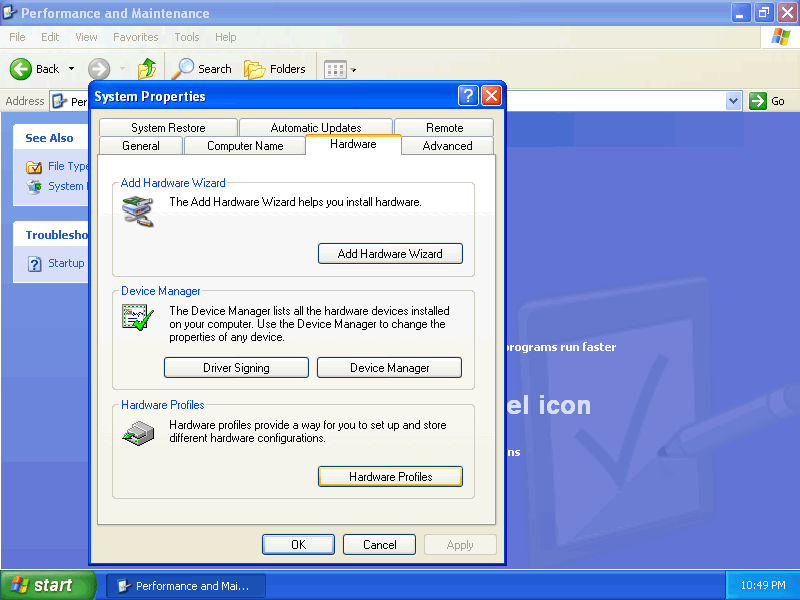
- The System properties dialog will appear. Select the Hardware
tab, then click Hardware profiles button near the bottom.
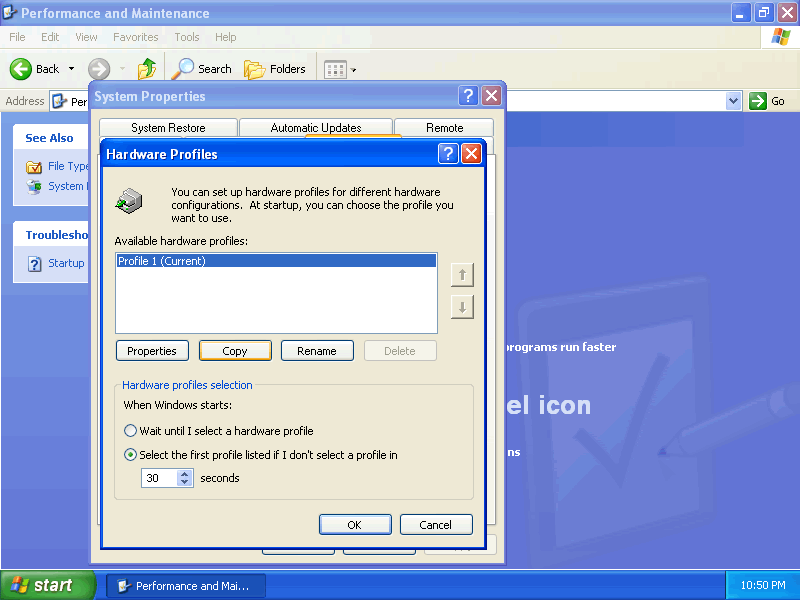
- The Hardware profiles dialog will be displayed. Your current
profile needs to be copied. Select the profile to highlight
and then select the copy button.
- Using my Windows XP Services Configuration as a guide, choose a
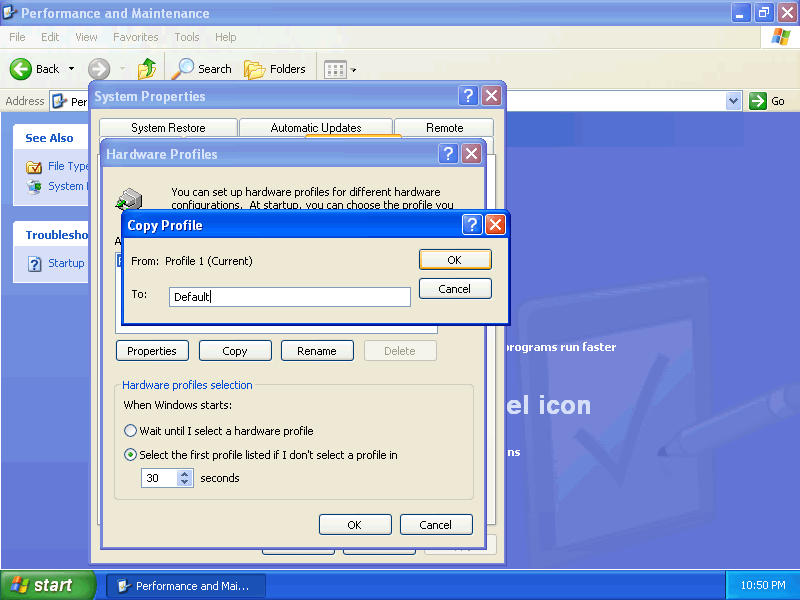
- Copy and rename your profiles. My example names would be
Super Tweak, Safe, default
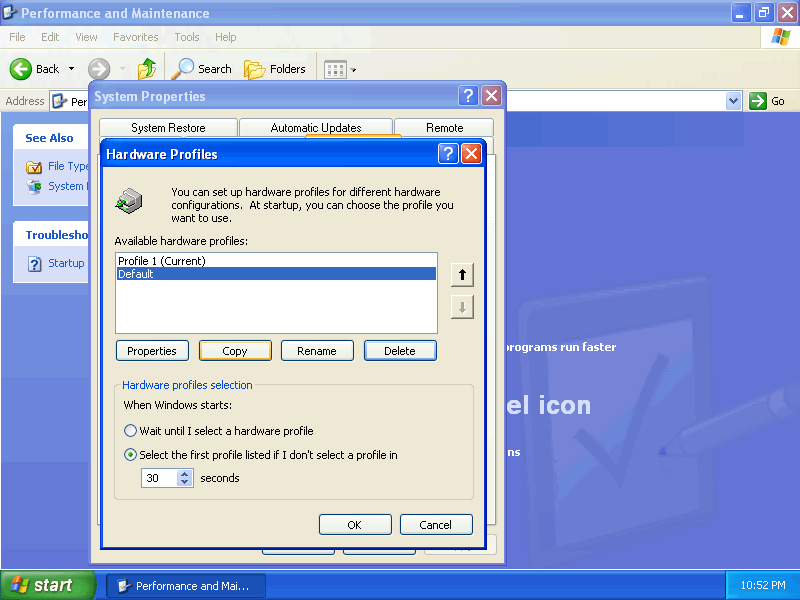
- Your hardware profiles could look something like this when
finished, select OK on the hardware profiles dialog box and
system properties.
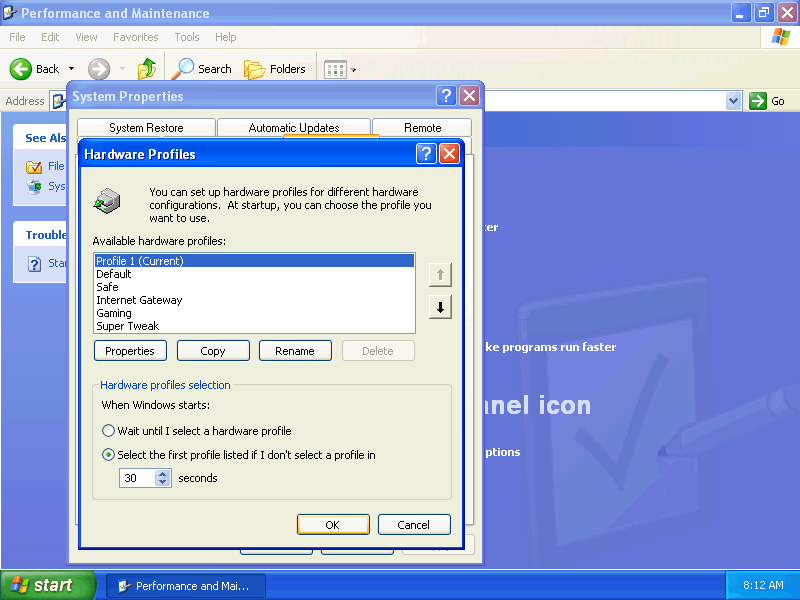
- After creating as many hardware profiles as you wish, select
Administrative Tools in the performance and Maintenance panel. 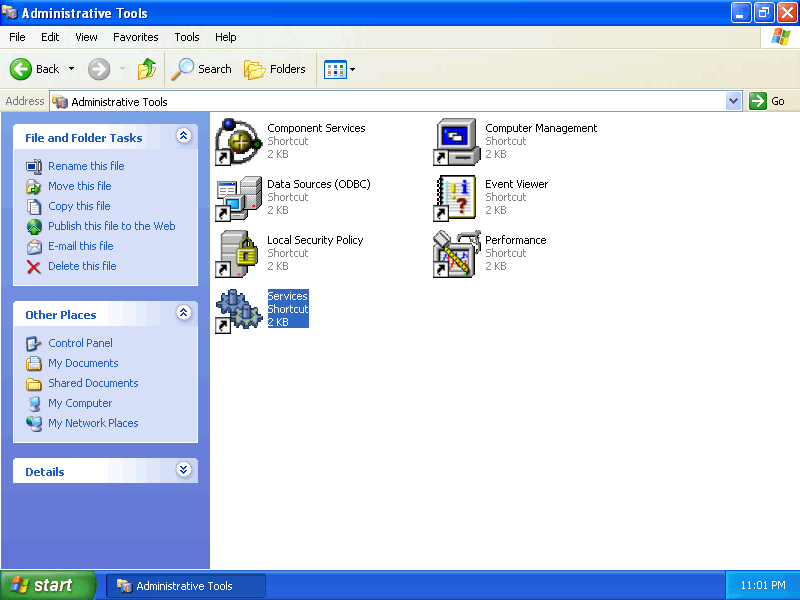
10. In the Administrative Tools, select Services.
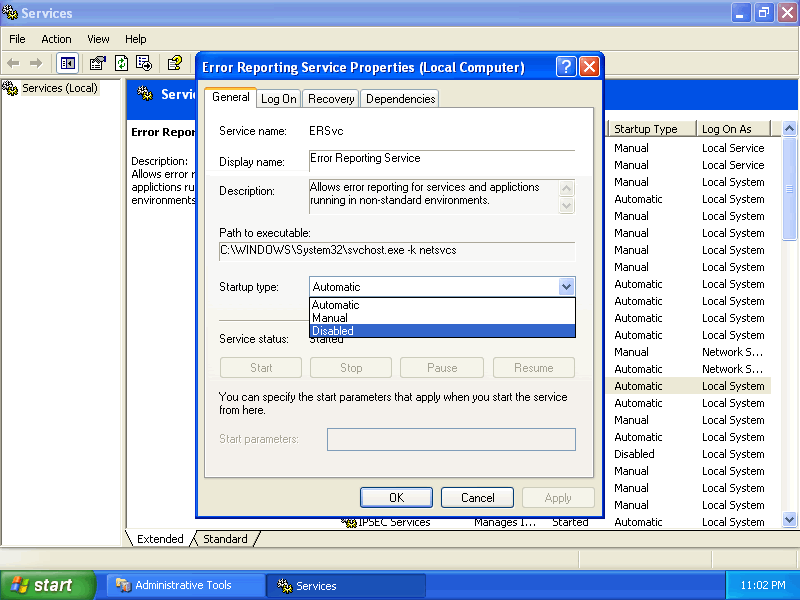 11. Double click each service to bring up the services properties
dialog. Using Black Vipers Windows XP Services Configuration as a guide,
select each service and Enable or Disable them in each profile by
selecting the profile and choosing the proper button.
Do not adjust your "Default" or "Profiles 1" configuration.
Please understand: - If a service is listed as "Automatic or Manual," leave the hardware profile as "Enable."
- If a service is listed as "Disabled," change the hardware profile to "Disable."
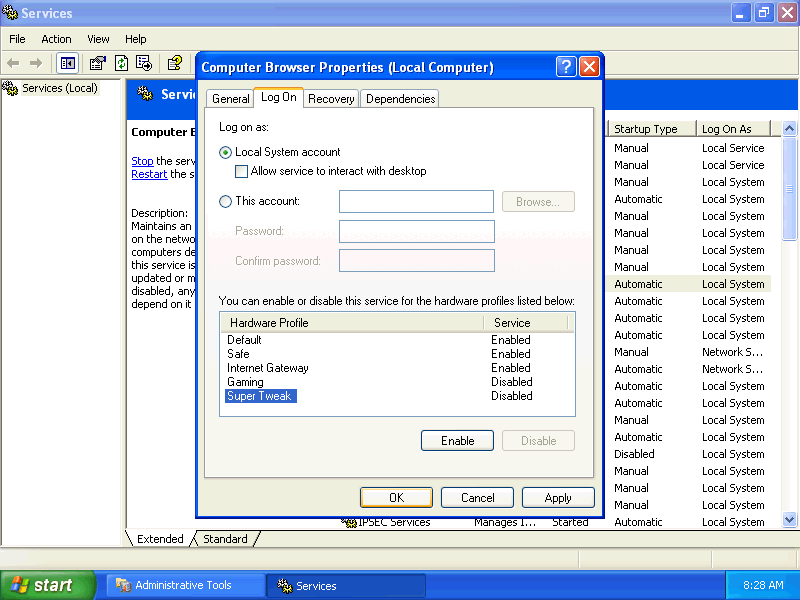
12. After you have made all your changed to the various services and profiles
then you will need to reboot your computer.
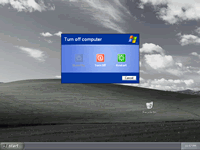
13. In a few seconds, the "Hardware Profile" screen will be displayed
allowing you to choose which service configuration you wish to boot.
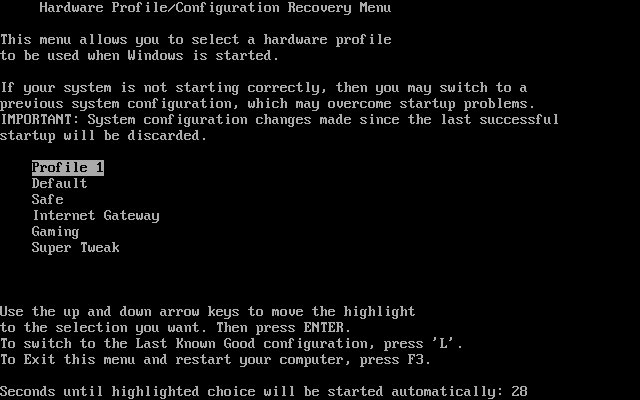
The beauty of this setup is if your tweaked settings crash your computer or do not work correctly all you have to do is reboot and pick you stable Profile that you did not ever change and you are right back up and running. Found via: Black Viper Labels: Tweak Tuesdays
|


I have tried to do this, and it all looks ok. When I view a services status in the Log In tab, it shows as being disabled for profile x. However, when I reboot using that profile, all services are still as they were before. Anyone else having this problem?