Block Windows XP SP3 or Windows Vista SP1 from installing
Tuesday, January 22, 2008
That's right Windows XP SP3 is just around the corner following hot on its heals is Windows Vista SP1. But what if you are happy with you current window setup and do not want these SP's to install how do you stop them?
One way would be to download the command line program from Microsoft and muddle your way thru getting it to stop these updates.
Another way would be to make the registry changes yourself:
Update the registry manually. To do this you simply need to go to this key: HKLM\Software\Policies\Microsoft\Windows\WindowsUpdate Create a new DWORD value named DoNotAllowSP and set it to 1 (To disable the SP install), or 0 (To allow the SP install)
Or you could download from one of my favorite sites www.intelliadmin.com their free GUI Tool shown below.
Want to cleanup your Firefox browser a little? Maybe get rid of some of the menu headers that you don't user or possibly all of them? Well it is quick and easy to do.
To get rid of say "Tools" and the "Help" menu items you would need to find the file userChrome.css. It will be located in Firefox's folder under the data and then the profile folder. All you need to do is right click on it and chose "EDIT" and add the following to the bottom of the file and save it.
/* Remove the Help and Tools menus */
 menu[label="Tools"], menu[label="Help"] {
 display: none !important; }
You could add all of the menu items if you wanted to or only the "Help" item. Its up to you.
MS Office 2007: How to determine what version you have
If you are like me you want to be able to click and tell which version your Office suite is at a glance. With previous versions of MS Office all you had to do was click on the "Help" button and chose "About" and it would tell you what version of Office you were currently using.
Now with Office 2007 it is not nearly that easy. This might seem like a simple thing but after recently install Office 2007 SP1. I was not sure whether the update had installed and wanted to confirm it.
Here is how you can check this for Office 2007. First click on the "Office" icon in the top left corner where you will see a drop down like the one below.
In this instance I have Excel open so I want to choose the "Excel Options" button and left click it.
From there you will want to chose the "Resources" button and to the right you will have information on what version the application is.
Well if you are not currently using IE7 and still happy with Internet Explorer 6 take note.
The IE7 upgrade scheduled to roll out via WSUS (Windows Server Update Services) on Feb. 12 was announced last October, when Microsoft said it would no longer require users to prove they owned a legitimate copy of Windows XP before they were allowed to download the newer browser. Microsoft explained that the move was prompted by security concerns..
If you are a home computer user and have your Windows setup to auto-update you will need to either edit your registry so that it does not implement the auto-update of IE7. You can do that by doing the following:
Create a registry key that will block the install. It is located under this key:
The final option for a home user is to use a cool GUI interface program from IntelliAdmin. There are two different types one for remote administration which can be downloaded HERE.
Or if you are only dealing with your one local computer you can download a local version HERE.
For those of you that are in a corporate environment and have adminstrative access to your WSUS server you can do the following:
"If you have configured WSUS to 'auto-approve' Update Rollup packages, Windows Internet Explorer 7 will be automatically approved for installation after February 12, 2008, and consequently, you may want to take the actions below to manage how and when this update is installed," Microsoft warned in a support document posted to its site. WSUS's default setting for Update Rollups is to not autoapprove them.
Companies that stuck with IE6 must take action, Microsoft said, or IE7 may be automatically downloaded and installed to their workers' PCs. Specifically, administrators who have set WSUS to automatically approve Update Rollups will need to disable the auto-approval rule before Feb. 12 to prevent IE7 from infiltrating their infrastructure. After that date, they must synchronize the update package with their WSUS server and then switch the autoapproval rule back on.
Editorial: Bionic Eye or Ultimate Gaming Accessory
Monday, January 21, 2008
Most of us may be familiar with the Bionic man or the new Bionic woman. Who had parts of their bodies replaced with enhanced electronic and mechanical parts after severe injuries. Well the folks at Washington University have gotten one step closer to making one of those replacements a reality.
On January 17th they announced a prototype device that contains an electric circuit as well as a red light-emitting diode for display, though it does not yet light up. They are currently struggling with materials that can be used for this that will be safe to use in the body, similar to that which are used for current contact lenses.
"Looking through a completed lens, you would see what the display is generating superimposed on the world outside," says Babak Parviz, a UW assistant professor of electrical engineering.
The researchers plan to eventually power the lenses using a combination of radio frequency power and solar cells placed on the lens according to Parviz. The large portion of the eye outside the transparent portion of the eye could be used to place the required electronics.
Imagine the gaming possibilities with a device such as this. Couple this say with a gaming console such as the Wii and you would have a totally submersive gaming experience. Possibly add a wireless set of earbuds and you could be that much closer to a complete virtual reality gaming experience.
Of course I could see all kinds of Military applications for such a device as well. Imagine a fighter pilot, tank driver or field commander having access to something like this. I am sure that they are currently using something maybe much like this but with a few refinements this could make the ultimate soldier even more connected.
Our download of the day is a free standing program that you can download by clicking HERE or the above picture. Once you have downloaded the program simply click to run and you will see a dialog box like the one below.
Simply check mark the items that you would like to uninstall and click next. If you do not have anything to uninstall a pop up box will notify you that this is the case and then the program will exit.
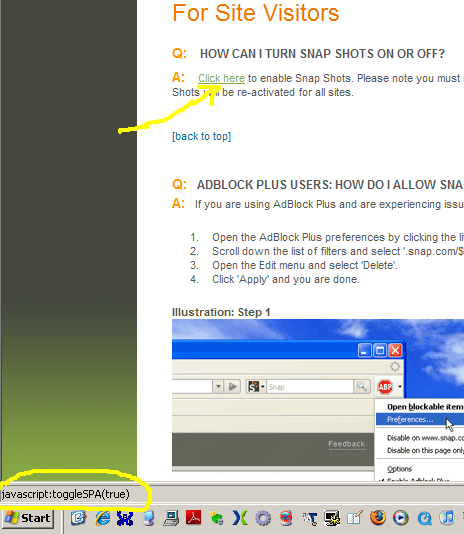
If you are like me not only do you not want to see those ads that a lot of very good web pages have but you also do not want to fight with pop-up windows that are also ads like the one shown to the left from Snap* Shots. They take up a lot of space in your window and of course most of us are conditioned so that if we see a "+" in the right hand corner of the window we assume that it will function the same as the Windows "X" in the corner of a open window and close it. However, when you click this for one of the pop-ups you get a second helping of advertising. We I have touched previously on how you can block this in Internet Explorer, Opera and Firefox. But if you just want to be done with seeing these ads from Snap* Shots quickly they have a javascript cookie you can load from their FAQ site HERE.
I know it sounds a little odd to say the least to tell you to go to the offending companies web site and click on a javascript word but it works and quickly. One thing to remember is that this works best for Internet Explorer and it will only work as long as you do not delete the cookie that this script has loaded.
Please see the snippet below and notice the bottom left corner where it says "SPA true". If you were to click the link again it would say "SPA false" and the Snap* Shots ads would once again be annoying you.


 That's right Windows XP SP3 is just around the corner following hot on its heals is Windows Vista SP1. But what if you are happy with you current window setup and do not want these SP's to install how do you stop them?
 Want to cleanup your Firefox browser a little? Maybe get rid of some of the menu headers that you don't user or possibly all of them? Well it is quick and easy to do.
 If you are like me you want to be able to click and tell which version your Office suite is at a glance. With previous versions of MS Office all you had to do was click on the "Help" button and chose "About" and it would tell you what version of Office you were currently using.

 Well if you are not currently using IE7 and still happy with Internet Explorer 6 take note.


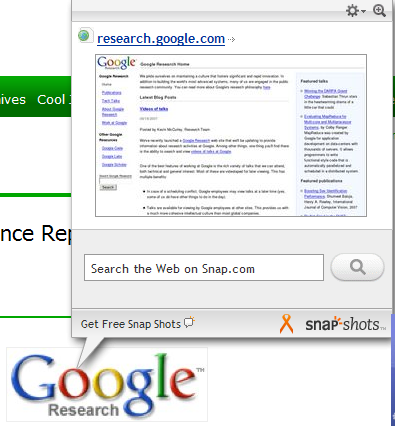 If you are like me not only do you not want to see those ads that a lot of very good web pages have but you also do not want to fight with pop-up windows that are also ads like the one shown to the left from Snap* Shots. They take up a lot of space in your window and of course most of us are conditioned so that if we see a "+" in the right hand corner of the window we assume that it will function the same as the Windows "X" in the corner of a open window and close it. However, when you click this for one of the pop-ups you get a second helping of advertising. We I have touched previously on how you can block this in