|
|
Web Minute: Gmail Advance Filter for SPAM |
|
Friday, February 29, 2008 |
 Upon reading Amit's Digital Inspiration recent blog post about Gmail Plus I was struck with what he talks about being a useful Gmail trick of adding a "+LABEL" after your beginning email when you sign up for something online in order to track and handle SPAM. For example I could use this email address to signup for Digital Inspirations news letter and then setup a filter to look for that specific to email address and pull all incoming emails to a seperate folder. Upon reading Amit's Digital Inspiration recent blog post about Gmail Plus I was struck with what he talks about being a useful Gmail trick of adding a "+LABEL" after your beginning email when you sign up for something online in order to track and handle SPAM. For example I could use this email address to signup for Digital Inspirations news letter and then setup a filter to look for that specific to email address and pull all incoming emails to a seperate folder.
techweekly+digital inspiration@tech-weekly.com What happens is Gmail does not really care what you have after the "+" sign it ignores it except for when you are setting up filters for incoming emails. That allows you to filter things all kinds of ways. Labels: Web Minute
|
Bookmark Site Here:
|
|
posted by Tech Weekly @ 1:08 PM  
| |
|
|
|
|
Web Minute: Make Gmail work like Outlook |
|
Thursday, February 28, 2008 |

Are you like me you in that you really miss some of the natural ability of MS Outlook to keep you organized throughout your day but you are on the go or you don't have a MS Exchange server at your small business or at home? You can make yourself a nice portable office suite for email and productivity. I have used the following: - Portable Firefox 3 beta 3 from Portableapps.com
- Gmail and Google Calendar.
- Account with Remember the Milk (RTM)
- Remember the Milk Firefox Gmail extension
- Remember the Milk for Google Calendar
- Firefox extension Better GCal
- Greasemonkey Firefox extension
- Greasemonkey script Gmail Addons
I know this seems like a lot of different applications to use to accomplish this but many of you may already have some if not all of these applications and extensions. Once you have all of the above the way to accomplish what I show above which is having my Gmail open with my (RTM) Remember the Milk to do list open to the right and my Google Calendar open below with my (RTM) entries listed. What I have done is run a Greasemonky script called Gmail Addons so that when I open my Gmail I am able to choose from a couple of new choices in the top left of the window one of which is "Calendar" what this does instead of opening a new window to Googles Calendar it will open it in the same framed window that is already open either in the bottom portion or to the right. There is an really smart addition to this script that the author has added which is a "Prefs" button in the top left choices. When you click on that you can set where the "Calendar" will open either to the right of Gmail or to the bottom of the page, you can set how much of the screen it will occupy etc... If you couple that capability along with what the Firefox extension Better GCal does which is to add arrows that will collapse the left and top of Google Calendar to allow you to see more of the Calendar and not all those ads and other junk unless you need them. Finally in order to see you to do list and interact with (RTM) in Gmail you will need the Firefox extension listed above. It allows you once installed to have the list to the right of Gmail but it also allows you to collapse it if you do not need it to maximize your space for email. Labels: Web Minute
|
Bookmark Site Here:
|
|
posted by Tech Weekly @ 10:55 PM
| |
|
|
|
|
Tweak Tuesdays: Multiple hardware profiles to test services settings from login |
|
Tuesday, February 26, 2008 |
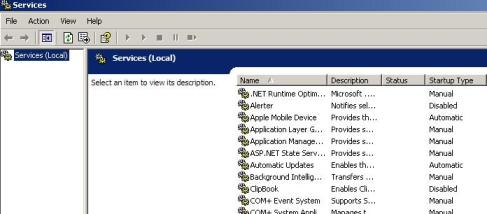
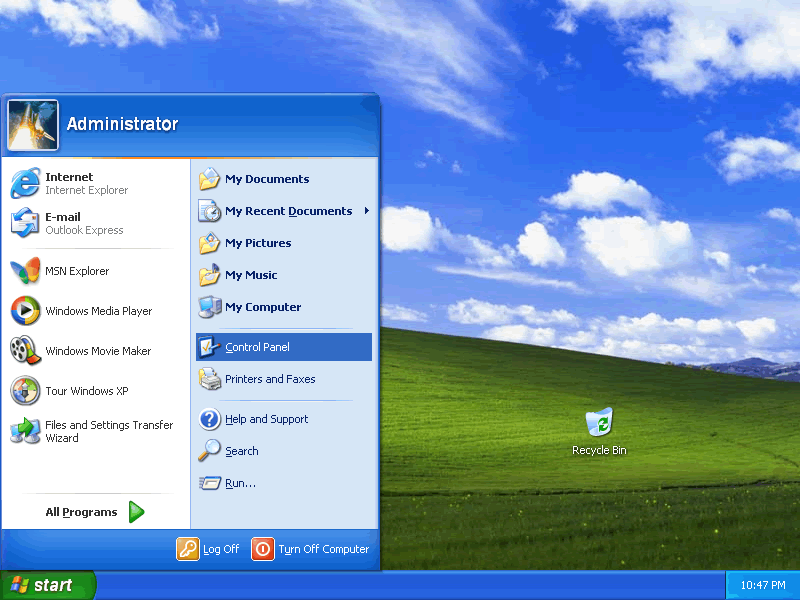
If you do not know what Windows Services are please be careful in trying anything described below. It has long been the opinion of most savvy Windows XP users that when Windows starts up there are a lot of services running in the background that are just not necessary. The trick is in knowing which ones you can completely disable or simply change from their "Automatic" setting to "Manual". I am only going to touch on the idea of trying these changes in this quick article. For more in depth choices and advice concerning which services are expendable so to speak and which you can try to turn on or off please check out one of my favorite sites: Black Viper On Black Vipers site he goes into a well informed and in depth detail for not only Windows XP services but also Windows 2000 and Windows Vista. Here is the really cool thing that I came away learning after finally finding his site again. You can setup on your PC several different "Hardware Profiles" ensuring that you keep one as the current default so that you will always have a working profile to go back to if you make a mistake or stop a service that you later find you really need. Here briefly are the steps for creating those different "Hardware Profiles": - Click on your Start button and choose the Control Panel
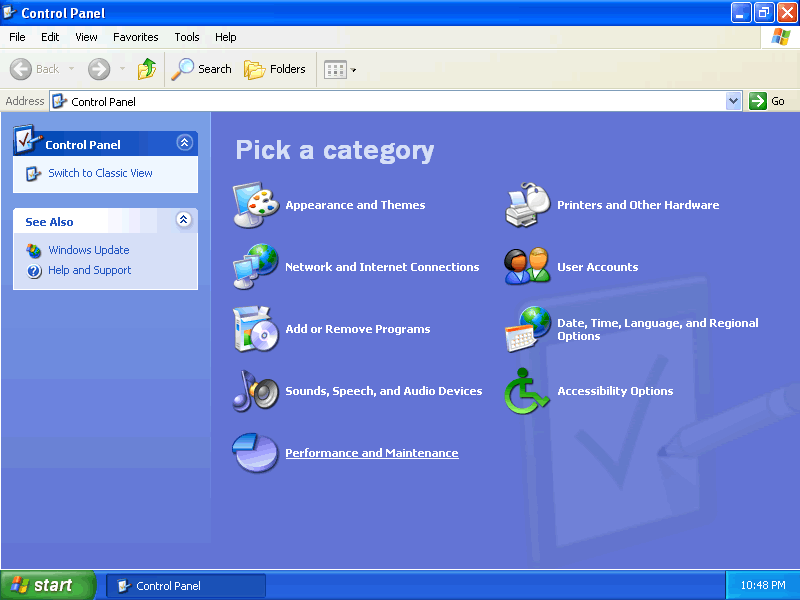
- In the Control panel, select Performance and Maintenance.
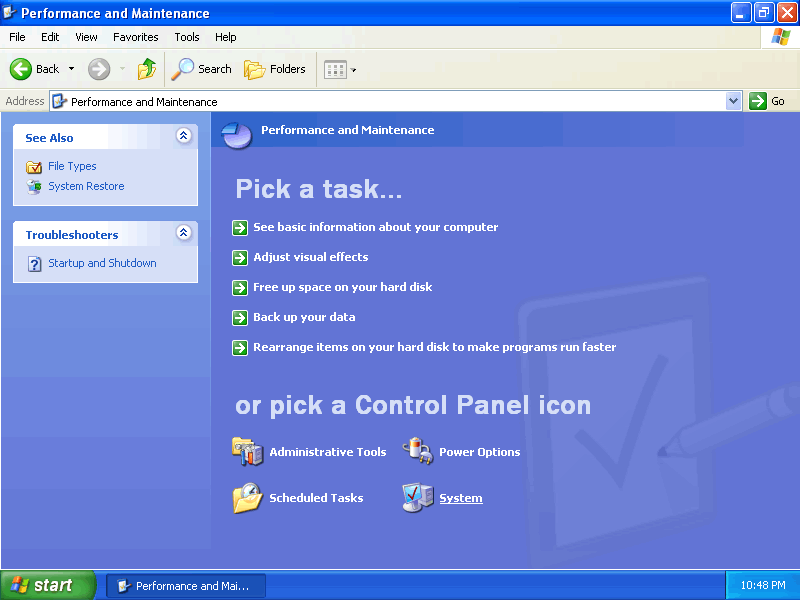
- In the Performance and Maintenance panel, select system
- The System properties dialog will appear. Select the Hardware
tab, then click Hardware profiles button near the bottom.
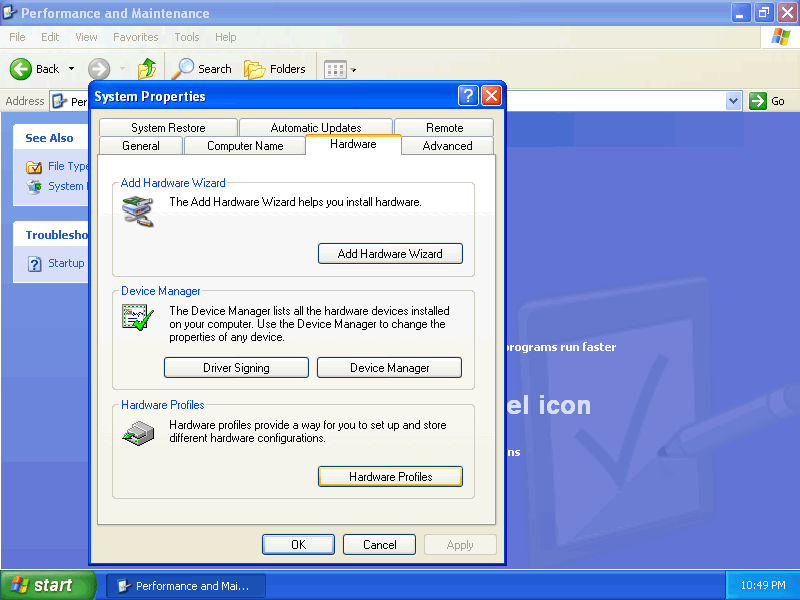
- The Hardware profiles dialog will be displayed. Your current
profile needs to be copied. Select the profile to highlight
and then select the copy button.
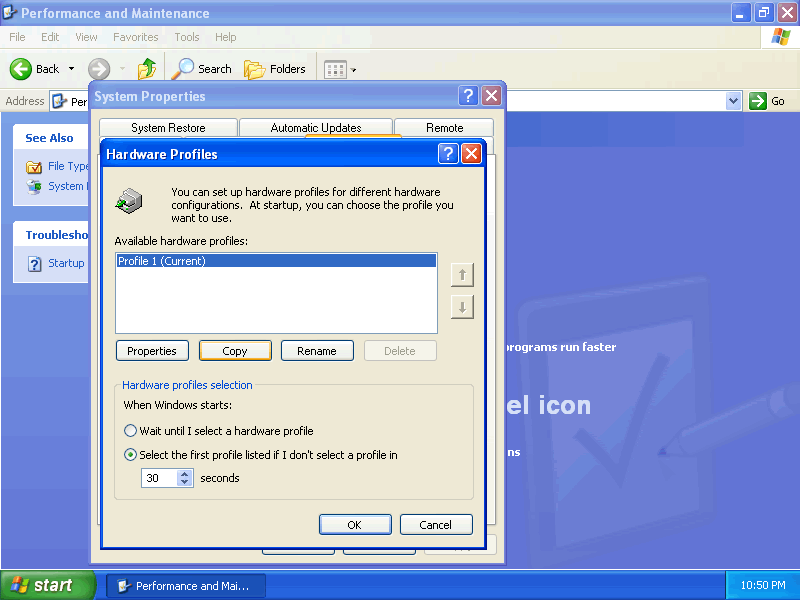
- Using my Windows XP Services Configuration as a guide, choose a
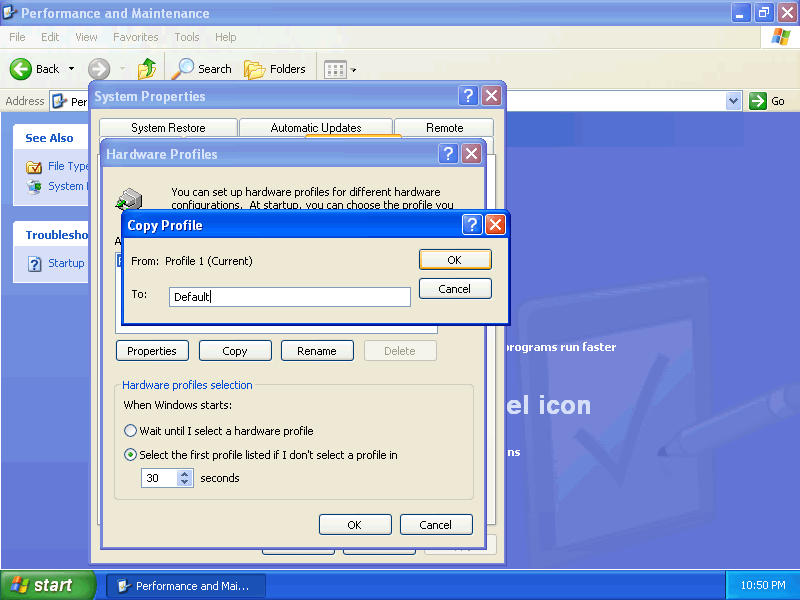
- Copy and rename your profiles. My example names would be
Super Tweak, Safe, default
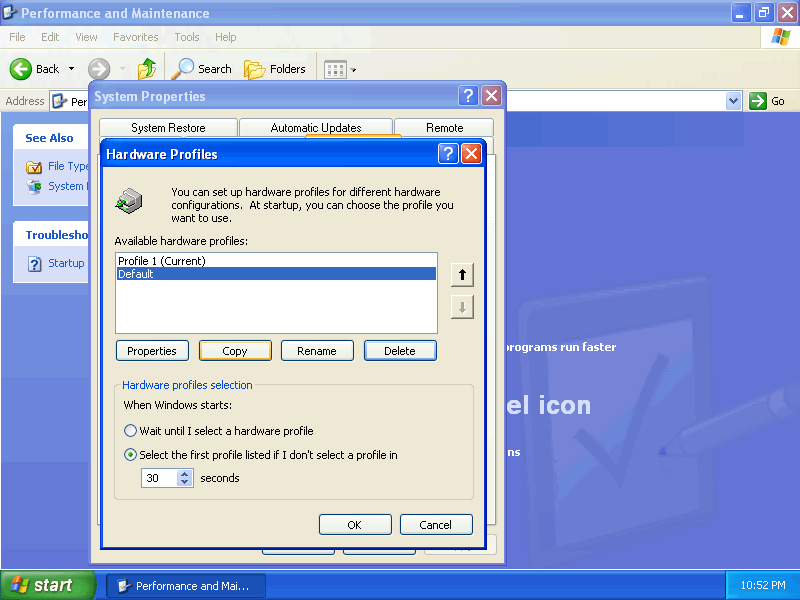
- Your hardware profiles could look something like this when
finished, select OK on the hardware profiles dialog box and
system properties.
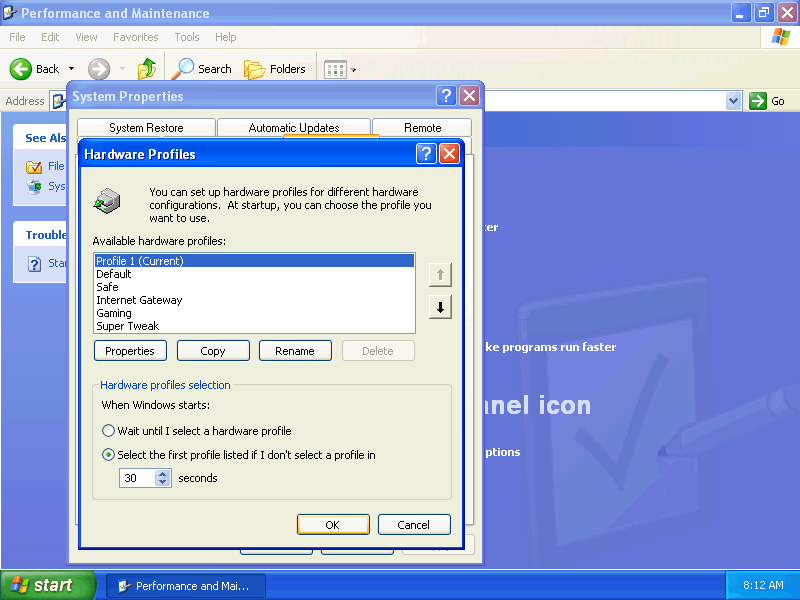
- After creating as many hardware profiles as you wish, select
Administrative Tools in the performance and Maintenance panel. 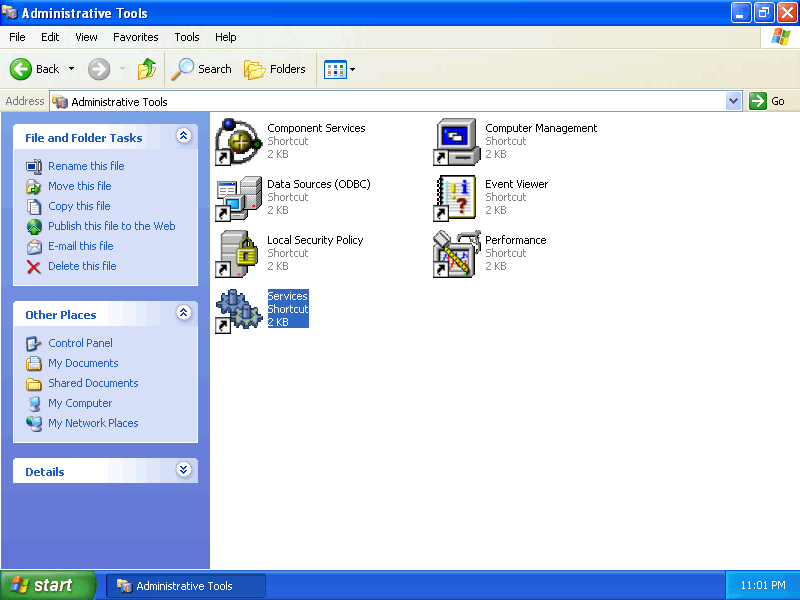
10. In the Administrative Tools, select Services.
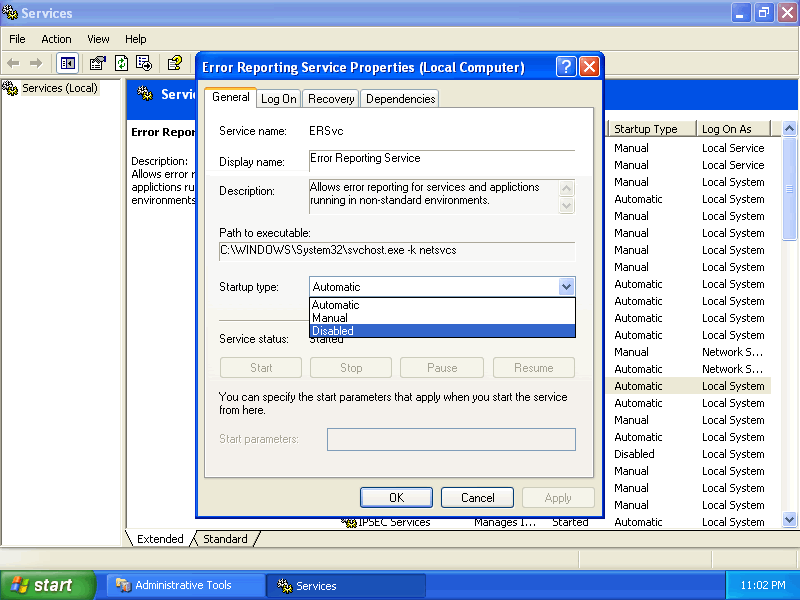 11. Double click each service to bring up the services properties
dialog. Using Black Vipers Windows XP Services Configuration as a guide,
select each service and Enable or Disable them in each profile by
selecting the profile and choosing the proper button.
Do not adjust your "Default" or "Profiles 1" configuration.
Please understand: - If a service is listed as "Automatic or Manual," leave the hardware profile as "Enable."
- If a service is listed as "Disabled," change the hardware profile to "Disable."
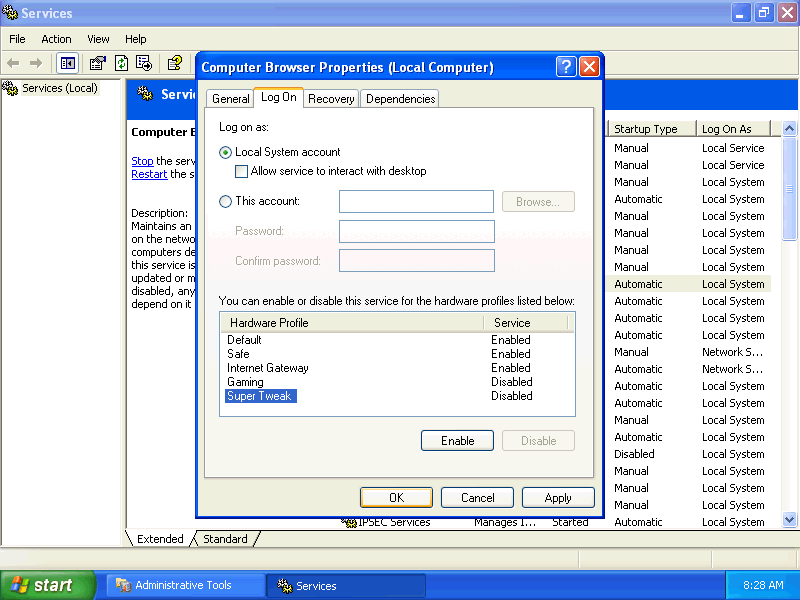
12. After you have made all your changed to the various services and profiles
then you will need to reboot your computer.
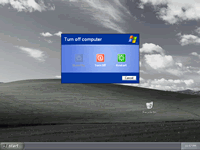
13. In a few seconds, the "Hardware Profile" screen will be displayed
allowing you to choose which service configuration you wish to boot.
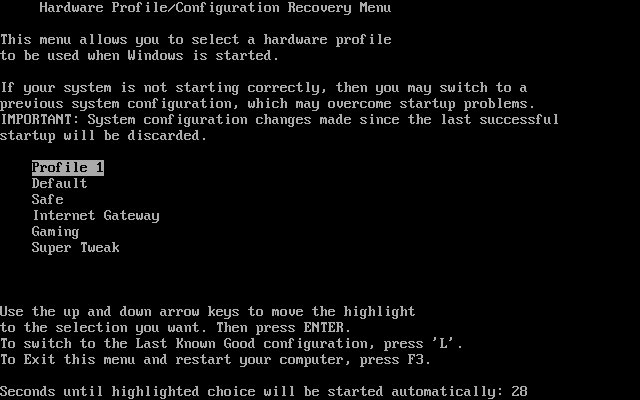
The beauty of this setup is if your tweaked settings crash your computer or do not work correctly all you have to do is reboot and pick you stable Profile that you did not ever change and you are right back up and running. Found via: Black Viper Labels: Tweak Tuesdays
|
Bookmark Site Here:
|
|
posted by Tech Weekly @ 11:21 AM
| |
|
|
|
|
Web Minute: Adobe Flash Player Version Detector |
|
Monday, February 25, 2008 |

Ever wanted to know exactly which version of Adobe Flash Player you have installed on
your PC? Well since I use a variety of different versions of browsers recently I found
myself wanting to find an answer to this question. Simply click on the picture above or
HERE and you will quickly know. Labels: Web Minute
|
Bookmark Site Here:
|
|
posted by Tech Weekly @ 3:00 PM
| |
|
|
|
|
Download of the Day: Taskbar Shuffle |
|
|
 Today's download of the day is one that I have been looking for a long time. I like to keep my icons on the taskbar in a certain order especially when I am at work. I know this sounds silly but it keeps my workflow smoother if I have them setup from left to right in the order that I would open them first thing in the morning and do my daily work. Today's download of the day is one that I have been looking for a long time. I like to keep my icons on the taskbar in a certain order especially when I am at work. I know this sounds silly but it keeps my workflow smoother if I have them setup from left to right in the order that I would open them first thing in the morning and do my daily work.
I do from time to time have windows close unexpectedly or I close them and then my flow is all messed up. Well not anymore, by downloading and installing "Taskbar Shuffle" I am able to control and change the order of the icons in the taskbar by simply clicking and dragging them into whatever order that I chose. This same program also allows you to do the same thing with you icons in the system tray as well. In order to do this though you will have to hold down the "Control" key while clicking and dragging the icons around.
Labels: Download of the day
|
Bookmark Site Here:
|
|
posted by Tech Weekly @ 8:00 AM
| |
|
|
|
|
Mobile Monday's: Windows Skydrive 5Gigs and still climbing |
|
|
 Today's quick article is on Microsoft's Skydrive. As part of our on-going Mobile Monday's posts this is another great online application that Microsoft has made available to users for free. Today's quick article is on Microsoft's Skydrive. As part of our on-going Mobile Monday's posts this is another great online application that Microsoft has made available to users for free.
By signing up to this service you can share Documents, Music, Pictures & Videos with friends and loved ones. One current drawback is the 50Mb size limit to each file. Sure you can have up to 5 Gigs worth of files but each one has to be 50Mb's or less. I believe this will change shortly. As we know from previous leaks on the Internet Google is near releasing their similar application without the restrictions that MS has. Their app nick named "Platypus drive" or GDrive is just around the corner. Google has laid the ground work to get folks comfortable with moving all their data online as well as keeping it there and accessing it as they need it. And all along they have been feeding out more storage space for app's like Gmail etc... It is just about time for them to pull it all together into one neat package. Of course ultimately if you tie this together with an operating system such as gOS you get a pretty complete package for next to nothing. All you need is the hardware to get you online. Labels: Mobile Monday's
|
Bookmark Site Here:
|
|
posted by Tech Weekly @ 6:00 AM
| |
|
|
|
|
| About This Site |
|
Author: Tech Weekly
Contact:
Weekly Poll
Translate this page
|
| Previous Post |
|
| Archives |
- Mar 4, 2007
- Mar 11, 2007
- Mar 18, 2007
- Mar 25, 2007
- Apr 1, 2007
- Apr 8, 2007
- Apr 15, 2007
- Apr 22, 2007
- May 6, 2007
- May 13, 2007
- May 20, 2007
- Jun 17, 2007
- Aug 26, 2007
- Oct 14, 2007
- Nov 11, 2007
- Nov 18, 2007
- Nov 25, 2007
- Dec 2, 2007
- Dec 9, 2007
- Dec 16, 2007
- Jan 6, 2008
- Jan 13, 2008
- Jan 20, 2008
- Jan 27, 2008
- Feb 3, 2008
- Feb 17, 2008
- Feb 24, 2008
- Mar 2, 2008
- Mar 9, 2008
- Mar 16, 2008
- Dec 14, 2008
- Dec 28, 2008
- Jan 4, 2009
- Jan 18, 2009
- Jan 25, 2009
|
| Advertisement |
|
|
| Linux top stories on Digg |
|
|
|


