|
|
Firefox Friday: Broadband Speed Test and Diagnostics |
|
Friday, March 14, 2008 |
 If you are like a lot of folks on the net, you want to know your Internet speed. Well that is where this great Firefox Extension comes in. Broadband Speed Test and Diagnostics is a nice and hand built in Internet speed test and diagnostic. All you do is load it like any other extension and access it via the tools drop down. There you have four choices. You can check your download speed, your upload speed, diagnose your connection or show you complete current network setup. If you are like a lot of folks on the net, you want to know your Internet speed. Well that is where this great Firefox Extension comes in. Broadband Speed Test and Diagnostics is a nice and hand built in Internet speed test and diagnostic. All you do is load it like any other extension and access it via the tools drop down. There you have four choices. You can check your download speed, your upload speed, diagnose your connection or show you complete current network setup.
I have this loaded on my USB memory stick working on Firefox 3 Beta 3 and it is great. I know from time to time I like to check the connection speed of a computer that I might be working off it is not mine from home and this eliminates the need to go to Google and search for a Broadband Speed Test. Though I am still partial to Speedtest.net. Here is what you will see when you click on the tools drop down of the Firefox Toolbar.

Labels: Firefox, Firefox Friday
|
Bookmark Site Here:
|
|
posted by Tech Weekly @ 6:00 AM  
| |
|
|
|
|
Thursday Firefox Special tip: Backing up About:Config settings |
|
Thursday, March 13, 2008 |
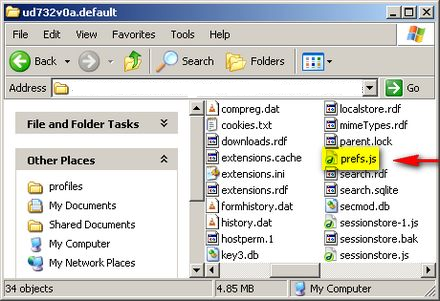
Are you like me and have made several changes to your Firefox registry file or "About:Config" file? Well just like any other changes that take time to do you want to back them up so that you will not have to go thru the trouble of redoing all that work. It is pretty easy and painless thing to do all you need to do is know where to go to get to the file that you need which is call "prefs.js" and for your Firefox installation on your desktop computer it can be reached by clicking on your start button, choosing Run and typing the following: %appdata%\mozilla\firefox\profiles If you do not have several Firefox profiles you will see a file names with 8 random characters followed by .default That is the file you want to open where you will see something similar to what's in the picture to the left. The file that you are looking for is "prefs.js" once you locate it you will need to save a copy of it to a safe place. But how do you do this for your portable version of Firefox you ask? Well you might not have asked but that was the first thing I thought of when I learned about this little tip was that my desktop installation of Firefox does not get used nearly as much as the one on my thumbdrive. So here is where you would locate that same "prefs.js" file for your Firefox on a stick. Since I have installed the Beta version of Firefox 3 beta version 4 I would look here for the file. PortableApps\FirefoxPortableTest4\Data\profile The reason I mention this is that for some reason when you install the portable version on your USB thumbdrive it has the "prefs.js" file on there twice and only one of them has the information that you want to save. 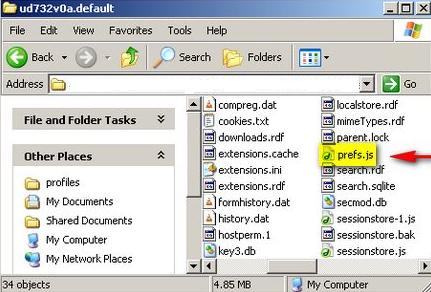
Labels: Firefox Friday
|
Bookmark Site Here:
|
|
posted by Tech Weekly @ 6:00 AM
| |
|
|
|
|
Vista Web Minute: Tips to Improve Windows Vista Performance |
|
Monday, March 10, 2008 |
 Registry errors often cause several computer-related errors, which may prove fatal to your computer. The registry-related errors occur when it starts expanding due to the accumulation of several unwanted, invalid, outdated, and incorrect entries within it. These entries find a place in the system’s registry and leads to uncontrolled registry growth. This unwanted growth is likely to cause poor data access time, and gradually slows down your computer. Registry errors often cause several computer-related errors, which may prove fatal to your computer. The registry-related errors occur when it starts expanding due to the accumulation of several unwanted, invalid, outdated, and incorrect entries within it. These entries find a place in the system’s registry and leads to uncontrolled registry growth. This unwanted growth is likely to cause poor data access time, and gradually slows down your computer.
Registry errors also lead to various errors that are associated with device drivers, DLLs, programs, and other key components on your computer. You can prevent all these errors if you increase the speed of your computer, which can be done by using a reliable registry cleaner tool. You can find many Vista registry fixing tools online. You can identify and choose an appropriate registry cleaner tool that meets your requirements. Registry cleaning also aids you in PC optimizing by eliminating and repairing unwanted and corrupt data in the registry. You can repair registry errors using a reliable registry tool by performing the following steps: - Creating a Backup of Your System’s Registry
Before you start deleting unwanted registry data, you must back up the registry. As the majority of registry cleaning tools are equipped with Backup and Restore options, you must first create a backup of the entire registry before proceeding with the cleanup process. This way, in case you perform a wrong step or delete an important registry key, you can easily resolve the issue by restoring the registry from a backup taken earlier. - Scanning the Registry
Once you have taken the backup of your registry, you can start scanning the registry by using the Scan option of the registry cleaner tool. Many registry cleaning tools allow you to customize your search and identify specific types of errors. You can use this feature to fix specific computer errors, such as DLL errors, driver errors, file association errors, and other runtime and fatal computer errors. - Repairing registry errors
Any good registry cleaning tool will allow you to repair the registry on its own as well as allow the user to perform specific scans. You should choose to perform specific scans only when you have enough experience and are able to identify the errors that need to be repaired. - Defragging the Registry
You must defrag the registry after cleaning it, as this will allow you to make your registry files contiguous. It is important to defrag the registry because an increase in the size of the registry, also increases the fragmentation of registry files, which in turn increases the data access time and as a result slows down your computer. Moreover, when you remove unwanted registry entries, there is a good possibility that their place holder keys or empty registry keys are left behind. You can use the defragging option to compress the registry by removing these empty registry keys and reindexing its files to resolve the fragmentation problems. - Performing Additional Tasks
Advanced registry tools comprise additional features that help in further PC optimizing and resolve high CPU and resources usage problems on Vista. For example, you can use an advance registry tool to resolve Vista usage problems by managing Startup programs, browser help objects, and other orphan system files. If you perform registry cleaning on a regular basis, you can optimize the performance of your computer to a great extent. Therefore, it is recommended that you perform scheduled scans on your system by using an effective registry cleaner tool. Labels: Registry, Vista, Vista Web Minute
|
Bookmark Site Here:
|
|
posted by Tech Weekly @ 6:00 AM
| |
|
|
|
|
| About This Site |
|
Author: Tech Weekly
Contact:
Weekly Poll
Translate this page
|
| Previous Post |
|
| Archives |
- Mar 4, 2007
- Mar 11, 2007
- Mar 18, 2007
- Mar 25, 2007
- Apr 1, 2007
- Apr 8, 2007
- Apr 15, 2007
- Apr 22, 2007
- May 6, 2007
- May 13, 2007
- May 20, 2007
- Jun 17, 2007
- Aug 26, 2007
- Oct 14, 2007
- Nov 11, 2007
- Nov 18, 2007
- Nov 25, 2007
- Dec 2, 2007
- Dec 9, 2007
- Dec 16, 2007
- Jan 6, 2008
- Jan 13, 2008
- Jan 20, 2008
- Jan 27, 2008
- Feb 3, 2008
- Feb 17, 2008
- Feb 24, 2008
- Mar 2, 2008
- Mar 9, 2008
- Mar 16, 2008
- Dec 14, 2008
- Dec 28, 2008
- Jan 4, 2009
- Jan 18, 2009
- Jan 25, 2009
|
| Advertisement |
|
|
| Linux top stories on Digg |
|
|
|


